Set an online alarm clock with sound, live countdown, labels, quick presets, and snooze for same-session browser reminders.
Last updated
Set a browser alarm clock Choose a target time, add an optional label, preview the alert sound, and keep the tab open until the countdown reaches zero.
Current time
10:15:15
Uses your device clock. If the system time is wrong, the alarm time will be wrong too.
Quick alarm presets
Two clean tones for meetings and reminders.
Preview
00:09:44
If you set the alarm now, it will ring at 10:25 today.
Target
10:25
today
Alarm label
Focus block
Optional reminder text
Sound mode
Chime
Repeats until dismissed
Snooze
5 min
Available after the alarm fires
Browser alarm limits Keep this tab open and make sure your device does not sleep before the target time. Browser alarms are useful for same-session reminders, but they are not a substitute for a phone alarm when the reminder is critical or needs to survive a restart.
Online alarm clock: set a browser alarm with live countdown and sound
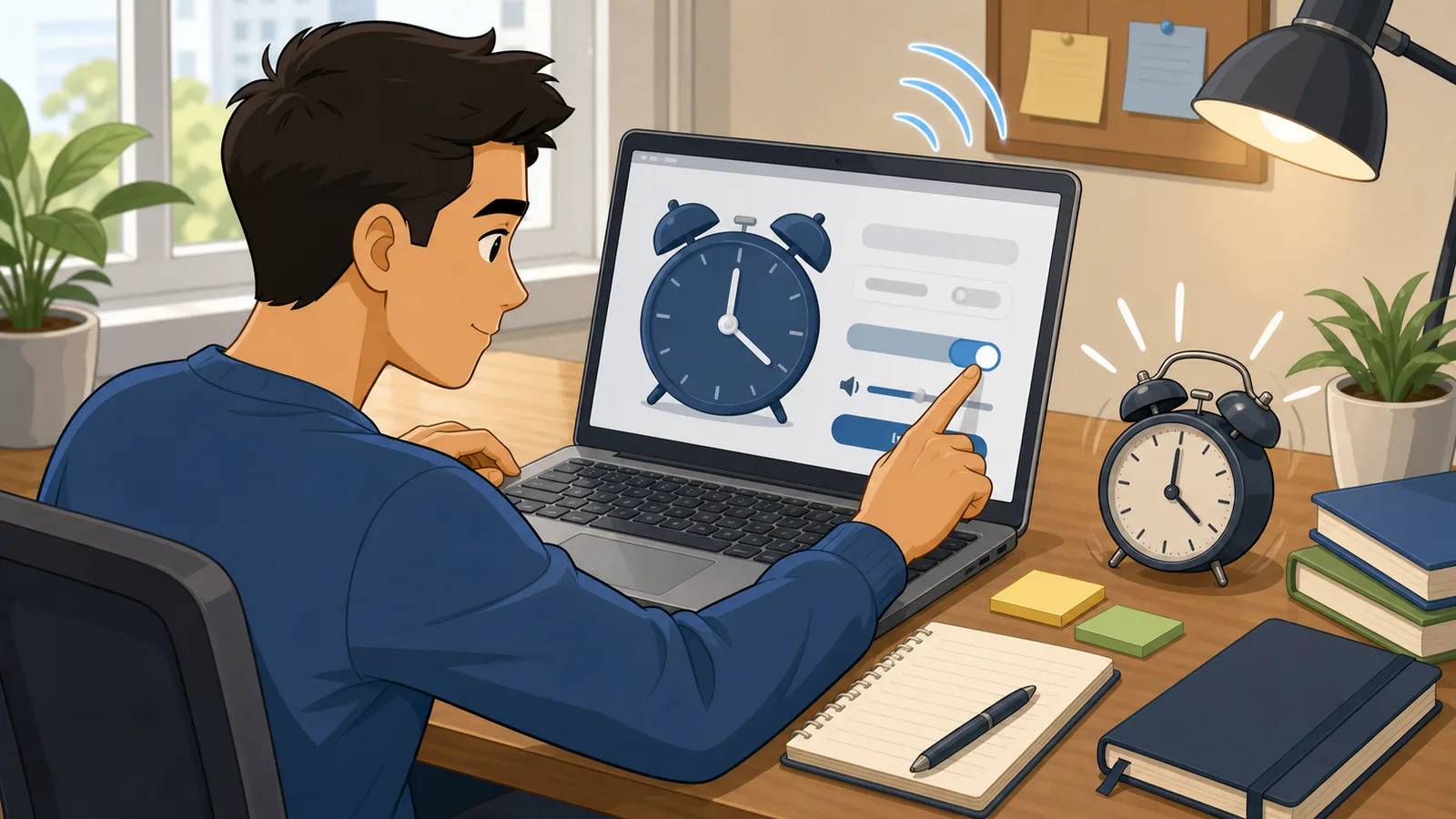
Use the online alarm clock to set a browser alarm for a specific time, keep a live countdown visible, preview the alert sound before you rely on it, and snooze a fired alarm without rebuilding the reminder. It works well for same-session reminders, study blocks, meetings, and breaks, but it still depends on the browser tab staying open and your device allowing audio playback.
How the browser alarm clock works
A browser alarm clock is a lightweight same-session reminder tool. You enter a target time, the page compares that target against your device clock, and the calculator keeps subtracting the current time from the alarm time every second until the countdown reaches zero. The result is a simple online alarm that works without installing an app or creating an account.
The calculator also keeps the practical setup choices close to the countdown: label, sound, repeat-until-dismissed mode, and snooze length. That matters because an online alarm clock is usually used for an immediate task rather than long-term scheduling. You should be able to test the sound, see the next ring time, and choose whether a fired alarm can be snoozed before you trust it for a meeting, focus block, cooking step, or break reminder.
That also explains its limits. The tool is only as accurate as your system time, and it only exists while the tab remains open. If the browser is closed, the device sleeps, or the system clock changes, the alarm can no longer behave like a dedicated operating-system alarm app. For a browser reminder during the current work session, though, this model is fast and convenient.
Countdown (s) = Target timestamp − Current timestamp
The remaining time is recalculated every second and the alert fires when the difference reaches zero.
Further reading
MDN — Window.setInterval() — Reference for the browser timer API commonly used to refresh a countdown every second.
Snooze, labels, and sound testing
Snooze is the main difference between a bare alert and a more useful browser alarm. When the alarm fires, a snooze button adds the selected number of minutes to the current time and arms the next alert immediately. That is useful for short breaks, meeting prep, repeated check-ins, or a wake-up-style reminder during the same browser session.
Labels make the alarm actionable. A generic sound only tells you that time has passed; a label such as "join standup", "check oven", or "leave for train" tells you what to do next. Sound preview is equally important because browser audio depends on user interaction, system volume, tab mute state, and output device. Testing the sound before setting the alarm is the safest way to confirm the alert path works in the current browser.
The most common failure mode is audio playback, not time calculation. Modern browsers often block autoplay until the user has interacted with the page, which is why a good browser alarm offers a button click, sound preview, or other explicit action before the countdown starts. If you mute the tab, mute the system, route audio to disconnected headphones, or never interact with the page, the countdown can reach zero while the sound never plays.
Background behavior is the second issue. Browsers may throttle tabs that are hidden for a long time, especially on laptops trying to save power. The alarm clock can still be useful for work blocks, kitchen timing, or short breaks, but you should not treat a browser tab the same way you treat your phone alarm at night or an operating-system reminder that survives sleep and restart events.
MDN — Web Audio API — Reference for the browser audio API used by many online alarm clocks to synthesize alert tones.
Alarm clock vs timer vs phone reminder
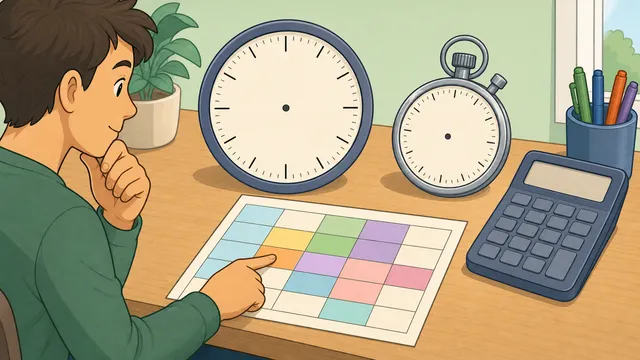
Use an online alarm clock when you care about the wall-clock time at which something should happen, such as a meeting start, a school pick-up reminder, or leaving for an appointment at 15:30. Use a countdown timer when you only care about a duration, such as 20 minutes of focused work, 8 minutes of stretching, or 12 minutes for a kitchen task. The two tools feel similar, but the setup question is different: clock time versus elapsed time.
A phone alarm or native reminder app is still the right choice when the reminder matters after this browser session ends. If the device may sleep, the tab may close, or the reminder needs to survive overnight, a native alarm is more trustworthy. The online alarm clock is best when you are already at your desk and want a fast browser alarm without leaving the page you are working on.
Worked example: setting a meeting reminder with snooze
Suppose it is 13:40 and you need to join a video call at 14:00. Set the alarm time to 14:00, label it "join client call", preview the chime sound, and leave repeat-until-dismissed on so the sound continues until you act. The preview countdown should show roughly 20 minutes, then fall every second while the tab remains open.
If the alarm fires while you are finishing another task, pressing Snooze 5 min immediately arms a new alarm for about 14:05. That is different from starting a countdown timer because the alarm remains anchored to the wall-clock moment when you next want to be interrupted. For a critical meeting, still use a calendar notification or phone alarm as a backup, but the browser alarm gives you a fast same-session reminder without switching tools.
Test the sound before you rely on the alarm. That confirms the browser has permission to play audio and that your chosen sound is loud enough in your current environment. It is also worth adding a clear label when you are juggling several tasks, because a label turns a generic alert into a reminder you can act on immediately.
For anything important, keep the tab open, keep the device awake, and choose a repeat-until-dismissed sound if the calculator offers one. Those small precautions are usually enough for workday reminders, break timing, and desk-based tasks. If the reminder is critical, use a second backup alarm on your phone rather than assuming a browser tab will behave like a dedicated clock app.
Frequently asked questions
Will the alarm work if I minimise the browser window?
Usually yes, as long as the tab stays open and the device remains awake. Minimising a window is not the same thing as closing the tab, so the browser alarm can often keep counting down. The practical risk is that some browsers reduce activity in background tabs to save power, so a minimised browser alarm is acceptable for a casual reminder but not ideal for something mission critical.
Why is there no sound when the alarm fires?
The most common reason is browser autoplay blocking. Many browsers require you to interact with the page before they allow sound to play, so use the sound preview or click the set button before you depend on the alert. Also check the obvious causes: muted system volume, a muted browser tab, Bluetooth headphones connected to another room, or a device that has gone to sleep before the alarm time arrives.
Can I save or bookmark an alarm time?
You can bookmark the page itself, but a browser alarm is still a live session tool, not a persistent clock app. Saving a bookmark does not guarantee that the tab will reopen with an armed alarm that keeps running after a restart. If you regularly use the same reminder time during a workday, it is reasonable to bookmark the page, but you should still set the alarm again when you need it.
Can I set the online alarm clock for tomorrow or overnight?
Technically you can choose a time earlier than the current time and the calculator can treat it as the next occurrence, which means tomorrow. The real problem is reliability over long gaps: if the browser closes, the laptop sleeps, or the session refreshes overnight, the alarm is lost. For alarms that matter after this session ends, use your phone alarm or a native reminder app instead of relying on a browser tab overnight.
How does snooze work in an online alarm clock?
Snooze arms a new alarm a set number of minutes after the current moment. In this calculator, the snooze control is designed for same-session reminders: when the alarm fires, choose Snooze and the page schedules the next alert using the snooze length you entered. The browser tab still needs to stay open and awake for that snoozed alarm to ring.
Is this online alarm clock better than a countdown timer?
It depends on the task. Use the alarm clock when the reminder belongs to a specific wall-clock time, such as 14:00 or 07:30. Use a countdown timer when the task is duration-based, such as 15 minutes of stretching or 25 minutes of focus. The alarm clock now includes snooze and a label because those are useful once a clock-time alert fires.