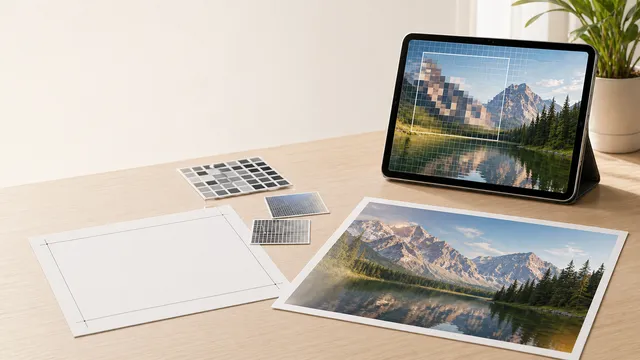
Resize a JPEG, PNG, or WebP image in-browser, convert it to the same format, JPEG, PNG, or WebP, and download the processed file locally.
Last updated
Image resize workflow
Resize once, export once, download locally
Upload a JPEG, PNG, or WebP image, set target dimensions or a proportional scale, and export a processed
file as the same format, JPEG, PNG, or WebP without sending the image to a server.
Upload a source image Choose a single JPEG, PNG, or WebP file to unlock the resize and export controls.
No file selected yet.
Awaiting upload · No file selected
Original size
Awaiting upload
Detected source
Awaiting upload
Format note
Upload a JPEG, PNG, or WebP source file. Other formats remain in the comparison table for workflow guidance only.
Resize controls
Width and height stay linked by default so the processed file keeps the original aspect ratio.
Percentage scaling recalculates width and height from the original image size.
JPEG and WebP use this quality setting when canvas exports the final blob.
Browser-safe export target Choose an uploaded JPEG, PNG, or WebP image to unlock browser-safe export settings.
Processed result
Awaiting upload
Compare the original preview with the processed preview, confirm the target dimensions, then download the
browser-generated file.
Ready when you are Upload an image, choose your size and format settings, then run the local resize and export pipeline.
Original preview
Upload a source file to preview it here.
Processed preview
Process the image to generate the download preview.
Original dimensions
Awaiting upload
Target dimensions
Enter target dimensions
Output format
Awaiting upload
Suggested filename
Awaiting processed file
Original size
No file selected
Processed size
No processed file yet
File-size change
Process an image to compare file sizes.
Pipeline note
This workflow decodes the uploaded file in the browser, stages the pixels on a canvas, resizes through
Pica, and exports the final blob with the selected browser-safe MIME type.
Format comparison
Browser export targets and format notes
JPEG, PNG, and WebP are the browser-safe export targets in this tool. The remaining formats stay visible for
compatibility guidance, workflow planning, and format-choice context.
Format
Browser export
Compression
Transparency
Animation
Best for
Browser note
JPEG.jpg / .jpeg
Yes
Lossy
No
No
Photographs, complex images
Safe client-side raster export with lossy compression and flattened transparency.
PNG.png
Yes
Lossless
Yes
No
Graphics, screenshots, transparency
Safe client-side lossless export that keeps transparency.
GIF.gif
No
Lossless
Yes
Yes
Simple animations, icons
Useful as an input reference, but browser canvas export cannot preserve GIF animation.
WebP.webp
Yes
Lossy and lossless
Yes
Yes
Web images, modern browsers
Safe client-side export for modern browsers with lossy or lossless compression.
AVIF.avif
No
Lossy and lossless
Yes
Yes
High-quality web images, HDR
Great comparison target, but browser export support is still uneven across canvas APIs.
SVG.svg
No
Lossless
Yes
Yes
Icons, logos, illustrations
Vector source format; this tool focuses on raster export from uploaded images.
TIFF.tiff / .tif
No
Lossy and lossless
Yes
No
Print, archival, professional photography
Reference format for print workflows; not a safe browser canvas export target.
BMP.bmp
No
Lossless
No
No
Windows legacy, raw pixel data
Legacy raster reference; not exposed as a browser export target.
Image resizer and format converter for JPEG, PNG, and WebP workflows
An image resizer and format converter helps you change both file dimensions and export format without leaving the browser. This version keeps the workflow local on your device, focuses on browser-safe processing for JPEG, PNG, and WebP files, and still explains why AVIF, GIF, SVG, TIFF, and BMP belong in the comparison table even when they are not offered as direct export targets here.
Why a browser-side image resizer and converter is useful
Browser-side processing is useful when you need a quick resize or format handoff without uploading the file to a third-party service first. The practical benefit is privacy and speed: the browser can decode the source, stage it on a canvas, resize it locally, and export a new blob for download in the same session.
That local workflow is ideal for screenshots, web graphics, design drafts, and one-off photo exports. It also means the available export menu should stay honest about what browsers reliably support, which is why this page focuses on JPEG, PNG, and WebP even though the comparison table still discusses AVIF, GIF, SVG, TIFF, and BMP.
How the resize calculation works
When aspect ratio stays locked, the resize math is straightforward: one dimension becomes the driver and the other is recalculated from the original width-to-height ratio. If you scale by percentage, both target dimensions are multiplied by the same factor. That is why a 50% resize of a 2400 by 1600 image becomes 1200 by 800 rather than some arbitrary custom size.
This page keeps that relationship visible because it helps prevent accidental distortion. Unlocking aspect ratio is still useful for edge cases such as exact social-media crop targets, but it should be treated as a deliberate override rather than the default resizing path.
Used when the aspect ratio stays locked and width is the controlling dimension.
target width = source width × scale%
Percentage scaling resizes both dimensions from the original image by the same multiplier.
Choosing between JPEG, PNG, WebP, and same-as-input export
JPEG is usually the practical output when you want a smaller photographic file and do not need transparency. PNG remains the safest choice for screenshots, UI captures, diagrams, and any image that must stay lossless or keep transparent edges. WebP often gives a smaller delivery file than older web formats while still supporting transparency, which makes it a strong default for many browser-first publishing workflows.
The same-as-input option is useful when the goal is purely to resize while preserving the original file family. It does not preserve every source characteristic, though. A canvas-based export still rebuilds the file, so metadata, color profile details, or format-specific features may not survive exactly as they entered the workflow.
Worked example: preparing a large PNG screenshot for web delivery
Suppose you have a 2400 by 1600 PNG screenshot that needs to sit inside a content column at around 1200 pixels wide. Keeping aspect ratio locked, you can type 1200 into the width field and let the tool recalculate the height to 800 pixels. From there, the format choice depends on the asset's job: PNG if you need a lossless screenshot, WebP if you want a smaller browser delivery file, or JPEG if transparency and exact edge fidelity do not matter.
That example shows why a processed preview is important. The right answer is not always the smallest file. Some screenshots, interface mockups, or diagrams need crisp edges and transparency, while a photographic image can often tolerate more lossy compression in exchange for a lighter download.
What this browser workflow does not preserve or solve
This page is designed for practical browser-side resizing and conversion, not archival fidelity or professional prepress work. Canvas exports usually strip EXIF metadata and can flatten transparency when you choose JPEG. Browser handling of orientation metadata can also vary, which is why final QA still matters when the original image came from a phone or camera workflow.
The comparison table includes GIF, SVG, TIFF, BMP, and AVIF because they still matter in real image pipelines, but they are not exposed as safe direct outputs here. GIF may carry animation, SVG is vector-first, TIFF belongs in print and archival workflows, BMP is mainly legacy, and AVIF export support through canvas APIs is still not something this page should promise as a universal browser feature.
MDN: HTMLCanvasElement.toBlob() — Documents browser canvas export behaviour, supported MIME types, and how quality parameters apply to lossy formats.
Pica README — Project documentation for the high-quality browser resize library used in this page's processing pipeline.
Frequently asked questions
Does this tool upload my image anywhere?
No. The resize and conversion workflow runs in the browser and produces a downloadable blob locally on your device. That makes it convenient for quick private edits, although you should still remember that browser memory limits and device performance can affect very large files.
Should I choose same as input, JPEG, PNG, or WebP?
Choose same as input when you only need to resize while staying in the original browser-safe file family. Choose JPEG for photographic images where a smaller file matters more than transparency, PNG for lossless screenshots or graphics that need alpha transparency, and WebP when you want a modern browser-friendly file that often compresses better than older raster formats.
Will resizing keep the correct proportions?
Yes, by default. The width, height, and percentage controls stay linked while aspect ratio is locked, so the processed file preserves the original proportions. You can unlock the ratio for deliberate custom targets, but that is when stretching or squashing becomes possible.
What happens to transparency, metadata, and orientation?
PNG and WebP can preserve transparency, while JPEG cannot, so transparent areas must be flattened for JPEG export. Canvas-based browser exports also usually drop metadata such as EXIF, and orientation handling can vary between environments, so this tool is best treated as a practical delivery helper rather than a metadata-preserving archival converter.