Megapixels
Answers: How many pixels an image contains, or what dimensions match a target MP count
Inputs: Width, height, megapixels, aspect ratio
Assumption: Megapixels measure total pixel count, not sharpness or print quality by themselves.
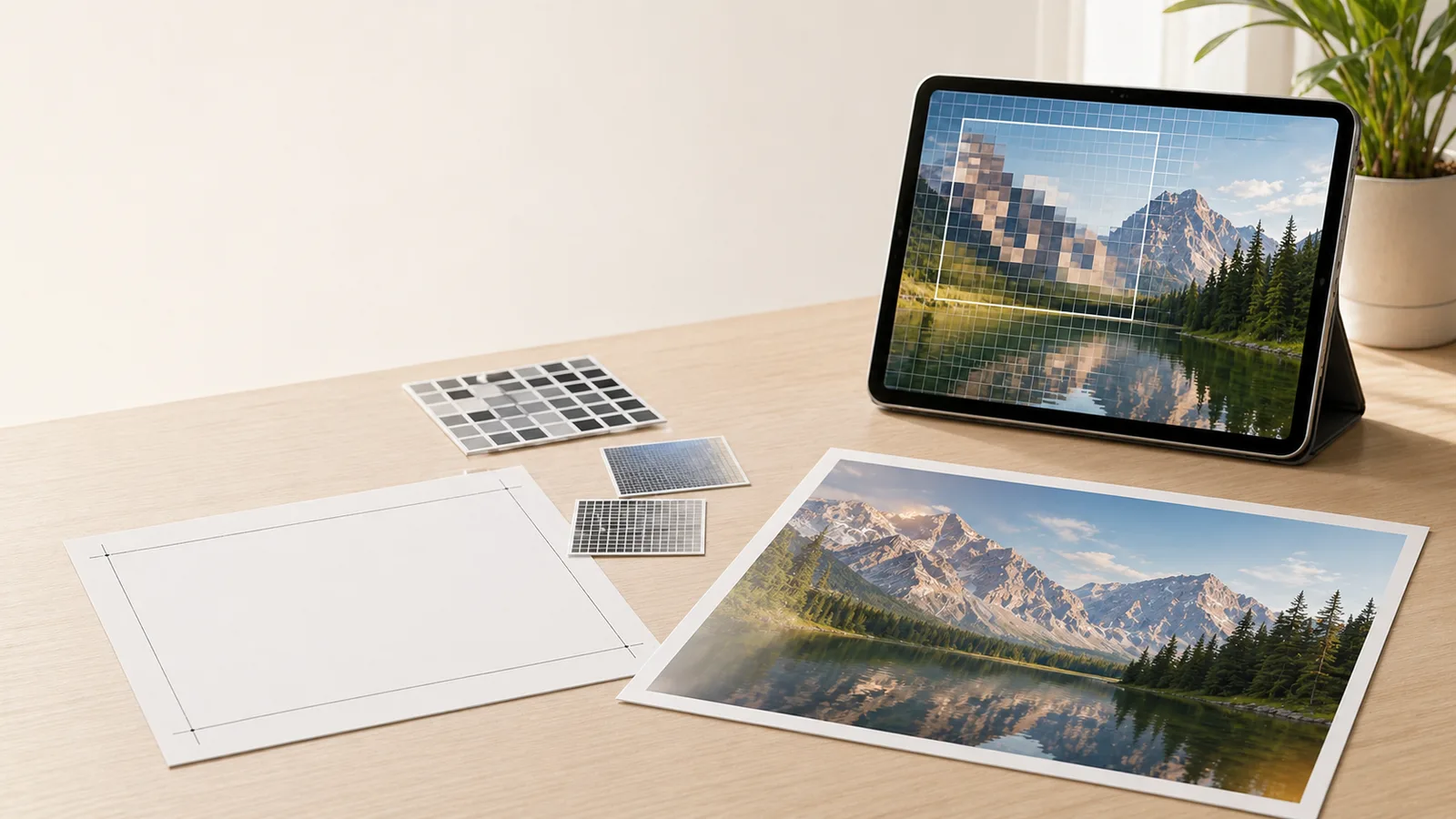
Calculate image size, megapixels, aspect ratio, print dimensions, required pixels, DPI/PPI density, and screen PPI in one resolution planning tool.
Last updated
Image size and resolution
Calculate image size, megapixels, aspect ratio, print dimensions, DPI/PPI density, and screen PPI without mixing assumptions. The panels preserve the old megapixel calculator, digital image resolution converter, resolution and print-size helper, aspect-ratio calculator, and PPI calculator workflows in one canonical page.
Active workflow
Calculate megapixels from width and height, or estimate dimensions from megapixels and aspect ratio.
Megapixels
4,000 × 3,000 pixels at 4:3. Use this to calculate megapixels, compare image resolution in megapixels, or estimate dimensions from a target MP count.
Print sizes
72 DPI
55.56" × 41.67"
141.11 × 105.83 cm
150 DPI
26.67" × 20"
67.73 × 50.8 cm
300 DPI
13.33" × 10"
33.87 × 25.4 cm
Formula
Megapixels = (Width × Height) / 1,000,000
In reverse mode, the calculator uses megapixels and aspect ratio to estimate matching pixel dimensions, then turns those dimensions into print-size examples at common DPI levels.
Megapixels
Answers: How many pixels an image contains, or what dimensions match a target MP count
Inputs: Width, height, megapixels, aspect ratio
Assumption: Megapixels measure total pixel count, not sharpness or print quality by themselves.
Print size
Answers: How large an image prints, or how many pixels a target print needs
Inputs: Pixels, inches, centimetres, millimetres, DPI/PPI
Assumption: The same image prints smaller at higher PPI and larger at lower PPI.
Density units
Answers: How DPI, PPI, DPCM, DPMM, LPI, px/mm, and pixel pitch compare
Inputs: One density value and unit
Assumption: Density labels do not set output size unless pixel dimensions or physical size are known.
Aspect ratio
Answers: What shape an image or screen has, and what missing side preserves that shape
Inputs: Width, height, or a ratio plus one known side
Assumption: Aspect ratio describes shape; it does not describe total detail.
Screen PPI
Answers: How dense a screen is at a given resolution and diagonal
Inputs: Resolution width, resolution height, screen diagonal
Assumption: Viewing distance and panel quality still affect perceived sharpness.
| Workflow | Answers | Inputs | Assumption |
|---|---|---|---|
| Megapixels | How many pixels an image contains, or what dimensions match a target MP count | Width, height, megapixels, aspect ratio | Megapixels measure total pixel count, not sharpness or print quality by themselves. |
| Print size | How large an image prints, or how many pixels a target print needs | Pixels, inches, centimetres, millimetres, DPI/PPI | The same image prints smaller at higher PPI and larger at lower PPI. |
| Density units | How DPI, PPI, DPCM, DPMM, LPI, px/mm, and pixel pitch compare | One density value and unit | Density labels do not set output size unless pixel dimensions or physical size are known. |
| Aspect ratio | What shape an image or screen has, and what missing side preserves that shape | Width, height, or a ratio plus one known side | Aspect ratio describes shape; it does not describe total detail. |
| Screen PPI | How dense a screen is at a given resolution and diagonal | Resolution width, resolution height, screen diagonal | Viewing distance and panel quality still affect perceived sharpness. |
The former specialist pages still matter as search intents: megapixel calculator, digital image resolution converter, resolution and print size calculator, aspect ratio calculator, and PPI calculator. They now resolve into one image size and resolution calculator with separate panels for pixel count, print planning, density conversion, frame shape, and display sharpness.
Image format conversion and color conversion stay separate because file encoding, compression, colour spaces, and palette conversion are materially different jobs from sizing, density, and print-readiness math.
Digital Imaging
An image size calculator is most useful when it keeps the related jobs separate. This page brings together megapixel calculation, image resolution, print size, required pixels, aspect ratio, DPI/PPI conversion, and screen PPI without hiding the assumptions behind one overloaded result.
Start with the megapixel panel when you know image width and height and want total pixel count, or when you know a target megapixel count and aspect ratio and need estimated dimensions. This preserves the common megapixel calculator intent while keeping aspect ratio visible.
Use the print-size panel when the question includes physical output. It converts image pixels to inches, centimetres, or millimetres at a chosen DPI or PPI, and it also works backwards when you know the target print size and need required pixels.
Use the density panel when you only need to compare labels such as DPI, PPI, DPCM, DPMM, LPI, px/mm, and pixel pitch. Density alone is not output size. You need pixel dimensions or physical size before a print-size answer is meaningful.
Megapixels are total pixel count expressed in millions. A 4000 x 3000 image has 12,000,000 pixels, so it is a 12 MP image. That value is useful for comparing file resolution, but it does not describe sharpness, lens quality, compression, or the final physical print size by itself.
Aspect ratio controls how those pixels are distributed across width and height. A 12 MP image at 4:3 and a 12 MP image at 16:9 can have similar total pixels but different dimensions and different crop behavior. The aspect ratio panel keeps shape decisions separate from detail decisions.
Megapixels = (width px * height px) / 1,000,000
Converts image dimensions into total megapixels.
Aspect ratio = width : height, reduced to simplest terms
Describes the image shape without changing the total pixel count.
For print planning, the core relationship is simple: physical size equals pixels divided by PPI. A 3000 px wide image printed at 300 PPI is 10 inches wide. The same file printed at 150 PPI is 20 inches wide, but each inch contains fewer image pixels.
Competitor tools often mix DPI, PPI, print size, and megapixels in one form. This page exposes those assumptions so you can answer questions like how large a 24 MP image can print, how many pixels an 8 x 10 inch photo needs at 300 PPI, or what print size a 1920 x 1080 image can support.
The print-size helper also includes an effective PPI check for the real production question: is this existing file enough for a specific target size? Enter the file's pixel dimensions and the intended physical output size to see the width PPI, height PPI, limiting density, aspect mismatch, and quality band without first guessing a DPI target.
Print width in = pixel width / PPI
Calculates physical print width from image pixels and density.
Required pixel width = target width in * PPI
Works backwards from a target print size and density.
Effective PPI = pixels / target inches
Checks the usable print density of an existing image at a chosen physical output size.
Centimetres = inches * 2.54
Converts the physical result for metric print specifications.
For raster image sizing math, DPI and PPI often use the same numeric value. A 300 PPI image target and a 300 DPI planning target both imply 300 image samples per inch for the sizing calculation. In stricter language, PPI belongs to image pixels and screen density, while DPI can also describe printer or scanner device dots.
That is why this consolidated page keeps density conversion separate from print-size calculation. Changing a metadata density label does not add pixels to the image. It only changes how the existing pixels map to physical inches unless the file is resampled.
Screen PPI uses display resolution and physical diagonal size. A 3840 x 2160 display can feel very dense on a 27-inch monitor and much less dense on a large TV because the same pixels are spread across a different physical area.
The screen PPI panel calculates pixel density, dot pitch, total pixels, and comparison bands for common display sizes. That helps with monitor, phone, TV, and projector questions without confusing display density with photo print readiness.
Related tools
The old megapixel calculator, digital image resolution converter, resolution and print size helper, aspect ratio calculator, and PPI calculator are now represented as panels on this canonical image size and resolution calculator. Their long-tail search intents remain in the panel labels, section headings, formulas, FAQ questions, and anchored redirects.
Image format conversion and color conversion remain separate. File formats, compression, alpha channels, color models, and palette conversion are different jobs from calculating image dimensions, print size, density, and display sharpness.
Related tools
Frequently asked questions
Use the pixel dimensions first. Width times height gives total pixels, and total pixels divided by one million gives megapixels. If you also know a print PPI, divide each pixel dimension by that PPI to get physical print size in inches.
1920 x 1080 contains 2,073,600 pixels, which is about 2.07 megapixels. It is also a 16:9 image or screen shape.
Divide the pixel width and height by 300. A 6000 x 4000 image prints at 20 x 13.33 inches at 300 PPI before cropping or bleed allowances.
Multiply each print side by the target PPI. At 300 PPI, an 8 x 10 inch print needs 2400 x 3000 pixels, or 7.2 megapixels, before extra crop or bleed.
Use the target PPI check in the print-size panel. Enter the image width and height in pixels, then enter the intended print size. The calculator divides pixels by target inches on each axis and uses the lower PPI as the practical quality limit, which is more useful than only changing a metadata DPI label.
They are often numerically interchangeable for raster sizing math, but they describe different contexts. PPI describes image or display pixels per inch; DPI can also describe printer, scanner, or device dots.
No, not by itself. Changing a density label changes how existing pixels map to physical size. It does not add real detail unless you resample the image, and resampling cannot create the same detail as a higher-resolution source.
Aspect ratio is the relationship between width and height. It describes shape, such as 16:9, 4:3, 3:2, or 1:1. It does not tell you how many pixels or megapixels the image contains.
Calculate the diagonal pixel count with the Pythagorean theorem, then divide by the screen diagonal in inches. The result is pixels per inch for that display.
Pixel pitch is the physical spacing between pixels, usually in millimetres. It is the reciprocal of PPI: dot pitch in millimetres equals 25.4 divided by PPI.
Because physical size changes density. The same 3840 x 2160 resolution is much denser on a 27-inch monitor than on a large TV, so viewing distance and screen size affect perceived sharpness.
Use the image format converter when you need to think about JPG, PNG, WebP, compression, alpha, or file encoding. Use this image size calculator when the problem is pixels, megapixels, print size, aspect ratio, DPI, PPI, or display density.
Guides
Step-by-step guides that use this calculator to solve real problems.
You may also need
Related
These related calculators come from the same leaf category, nearby sibling categories, or the same top-level topic.
Resize a JPEG, PNG, or WebP image in-browser, convert it to the same format, JPEG, PNG, or WebP, and download the processed file locally.
Convert one colour between HEX, RGB, HSL, HSV, and CMYK with copyable CSS output, CSS custom property handoff, and black-versus-white contrast guidance.
Convert typography and CSS units across points, pixels, rem, em, millimetres, inches, line-height, viewport units, and DPI/PPI assumptions.
Convert ISO A, ISO B, ISO C envelope, and North American paper sizes between mm, cm, inches, and pixels at custom DPI/PPI settings.